Scenario:
Make: Cisco
Model: Cisco ASA Firewalls [ASA 5506-X, 5508-X, 5516-X, and ASA software on Firepower appliances]
Mode: CLI [Command Line Interface]
Description: In this article, we will discuss why SSH to a Cisco ASA firewall fails with the error “Server unexpectedly closed network connection”, and walk through the checks that fix it, including SSH access rules, RSA keys, AAA authentication, key exchange settings and debugging.
What the Error Means
When you SSH onto a Cisco ASA using PuTTY or another SSH client, the connection sometimes closes straight away with the error “Server unexpectedly closed network connection”, as shown below.
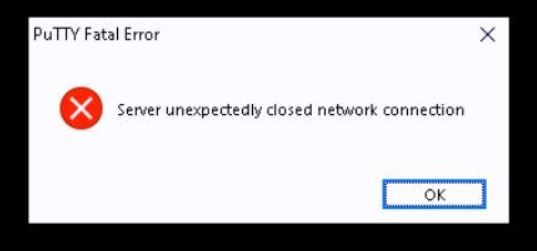
This error means your client reached the ASA, but the ASA ended the session before you could log in. The most common causes are:
- SSH is not enabled, or your source IP is not allowed on the interface you are connecting to.
- No RSA key pair has been generated on the ASA.
- AAA authentication for SSH is not configured, which is required on ASA 9.6(2) and later.
- The SSH client and the ASA cannot agree on a key exchange method or cipher.
- The maximum number of SSH sessions is already in use.
Before You Start
- Get console or ASDM access. Since SSH is not working, you need another way in to check and change the configuration.
- Note your source IP address and the ASA interface you are connecting to (for example, inside, management or outside). You will need both in the checks below.
Troubleshooting Steps
Step 1: Check Reachability
Ping the ASA interface from the machine you are connecting from, assuming ICMP is allowed. If the ping fails, fix routing or connectivity first. Note that you can only SSH to the IP address of the interface your traffic arrives on; for example, from the inside network you cannot SSH to the outside interface IP.
Step 2: Check the SSH Configuration
Run the command below to see the current SSH settings:
edledge-asa# show running-config ssh
ssh stricthostkeycheck
ssh 10.1.1.0 255.255.255.0 inside
ssh timeout 5
ssh version 2
ssh key-exchange group dh-group14-sha256
If there are no ssh <network> <mask> <interface> lines, SSH access has not been set up. Follow Configure SSH on Cisco ASA to configure it.
Step 3: Allow Your Source Network on the Correct Interface
The ASA only accepts SSH from networks listed in the ssh command, on the interface named in that command. If your PC is on 10.1.1.0/24 and connects through the inside interface, add:
edledge-asa# conf t
edledge-asa(config)# ssh 10.1.1.0 255.255.255.0 inside
A wrong subnet or interface name is one of the most common reasons for this error.
Step 4: Check the RSA Key
The ASA needs an RSA key pair to run SSH. Check whether one exists:
edledge-asa# show crypto key mypubkey rsaIf nothing is shown, or the key is smaller than 2048 bits, generate a new 2048-bit key:
edledge-asa(config)# crypto key generate rsa modulus 2048
WARNING: You have a RSA keypair already defined named <Default-RSA-Key>.
Do you really want to replace them? [yes/no]: yes
Keypair generation process begin. Please wait...
Step 5: Configure AAA Authentication for SSH
From ASA version 9.6(2), SSH requires AAA authentication. Without it, the ASA closes the connection immediately. Create a local user and enable local authentication for SSH:
edledge-asa(config)# username edledge-admin password Str0ngPassw0rd privilege 15
edledge-asa(config)# aaa authentication ssh console LOCAL
If you use RADIUS or TACACS+, replace LOCAL with your AAA server group name, and keep a local user as a fallback.
Step 6: Update the Key Exchange Method
Older configurations use dh-group1-sha1, which is weak and rejected by modern SSH clients. Change it to a stronger group:
edledge-asa(config)# ssh key-exchange group dh-group14-sha256If PuTTY shows “Couldn’t agree a key exchange algorithm” instead, refer to “Couldn’t agree a key exchange algorithm” SSH Error with Putty.
Step 7: Check Active SSH Sessions
The ASA allows only a limited number of concurrent SSH sessions. If old sessions are stuck, new connections can fail. Check and clear them:
edledge-asa# show ssh sessions
edledge-asa# ssh disconnect 0
Replace 0 with the session ID shown in the output.
Step 8: Debug the SSH Connection
If SSH still fails, run a debug from the console while you try to connect. The output shows exactly where the session is being closed:
edledge-asa# debug ssh 255
edledge-asa# undebug all
Important Note: Always turn debugging off with undebug all when you are done, especially on a busy firewall.
Step 9: Save the Configuration
edledge-asa# write memory
Building configuration...
[OK]
Step 10: Reload as a Last Resort
If the configuration is correct and SSH still does not respond, the SSH service may be stuck. Reload the ASA during a maintenance window. If your firewalls are in high-availability mode, reload the standby unit first, fail over, and then reload the other unit to avoid downtime.
Other Common SSH Errors on Cisco ASA
- Connection timed out – the ASA is not reachable, or there is no ssh line for your source network on that interface.
- Access denied – the username or password is wrong, or the AAA server is unreachable. Check the local user and the aaa authentication ssh console setting.
- Cannot reach the inside interface over VPN – SSH to the inside IP from a VPN tunnel needs management-access inside configured.
- Couldn’t agree a key exchange algorithm – a key exchange or cipher mismatch between client and ASA, covered in Step 6.
Frequently Asked Questions
Why does the Cisco ASA close the SSH connection immediately?
Usually because your source IP is not allowed in the ssh command, there is no RSA key, or AAA authentication for SSH is missing on ASA 9.6(2) and later.
Do I need to reboot the ASA to fix SSH?
Rarely. Configuration changes to SSH, RSA keys and AAA take effect immediately. A reload is only needed if the SSH service itself has stopped responding.
Can I SSH to the ASA outside interface?
Yes, by adding an ssh line for your public IP on the outside interface. Only allow specific trusted IP addresses, never 0.0.0.0 0.0.0.0, as exposing SSH to the internet is a security risk.
If you prefer GUI access, see Configure ASDM Access On Cisco ASA Firewall CLI. Also, if the ASA complains about an Unsupported SFR Module, you see a TFTP error during file transfer, or face an unwanted ASA failover, refer to the linked articles.
Disclaimer: This article is for educational purposes only and is not professional financial, medical, or legal advice. It may contain affiliate links, which earn us a small commission at no extra cost to you. See our Disclaimer and Affiliate Disclosure.
Article ID: EA00053