Scenario:
Make: Cisco
Model: Cisco Catalyst 2960, 2960-Plus, 2960-S, 2960-X and 2960-XR Series
Mode: Command Line Interface [CLI] and Hardware (Mode button)
Description: In this article, we will discuss three ways to factory reset a Cisco 2960 switch: with the Mode button, from the CLI (SSH or console), and from the switch: boot prompt when you do not know the password.
A factory reset removes the saved configuration and VLANs, so the switch starts up as if it were new. This is useful when you want to reuse a switch in another network, remove a configuration that has become too complex, or prepare a switch before returning or selling it. A factory reset does not delete the IOS software, so the switch still boots normally afterwards.
Which Method Should You Use?
| Method | Use When | Password Needed? |
| Mode Button (Express Setup reset) | You have physical access and want the quickest reset | No |
| CLI (SSH or Console) | You can log in to the switch with privileged (enable) access | Yes |
| Boot Prompt (switch:) | You have forgotten the password, or the other methods do not work | No (console cable required) |
Important Note: A factory reset erases the configuration permanently. If you might need it later, take a backup first with show running-config, or copy it to a TFTP server with copy running-config tftp:.
Method 1: Factory Reset Using the Mode Button
This method works on 2960 models with the Express Setup feature, which includes most 2960, 2960-Plus, 2960-S and 2960-X switches.
Step 1: Disconnect the Ethernet Cables
Disconnect all Ethernet cables from the switch, but keep it powered on and wait until it has fully booted.
Step 2: Press and Hold the Mode Button
Press and hold the Mode button on the front of the switch for about 15 to 20 seconds. The port LEDs light up and then the SYST LED starts blinking. Release the button when this happens.

The switch deletes its configuration and reboots with factory default settings.
Important Note: Some older or configured switches ignore the Mode button reset, or keep their VLAN database. If the switch still shows the old VLANs after rebooting, use Method 2 or Method 3.
Method 2: Factory Reset Using the CLI (SSH or Console)
Step 1: Log In to the Switch
Connect to the switch over SSH or a console cable and log in. If PuTTY shows an SSH error, see “Couldn’t agree a key exchange algorithm” SSH Error with Putty.
login as: admin
Using keyboard-interactive authentication.
Password: ********
Step 2: Enter Privileged EXEC Mode
Enter privileged EXEC mode with the enable command.
edledge-switch>enable
Password: ********
edledge-switch#
Step 3: Erase the Startup Configuration
Run the command below to erase the saved (startup) configuration.
edledge-switch#write erase
Erasing the nvram filesystem will remove all configuration files! Continue? [confirm]y
[OK]
Erase of nvram: complete
Step 4: Delete the VLAN Database
The write erase command does not remove VLANs, because the 2960 stores them in a separate file called vlan.dat. Delete it to remove all VLANs.
edledge-switch#delete flash:vlan.dat
Delete filename [vlan.dat]? (press Enter)
Delete flash:/vlan.dat? [confirm]y
Step 5: Reload the Switch
Run the reload command, and answer no when the switch asks you to save the configuration.
edledge-switch#reload
System configuration has been modified. Save? [yes/no]: no
Proceed with reload? [confirm]y
Important Note: Do not save the configuration at this prompt. If you answer yes, the switch writes the current running configuration back and does not reset to default. Also note that your SSH session ends during the reload, and after the reset the switch has no IP address or login. You will need a console cable to configure it again.
Method 3: Factory Reset from the Boot Prompt (Without Password)
Use this method when you do not know the password, or when the other methods do not work.
Step 1: Connect the Console Cable
Connect a console cable to the console port of the switch and open a terminal program such as PuTTY with these settings: 9600 baud, 8 data bits, no parity, 1 stop bit, no flow control.
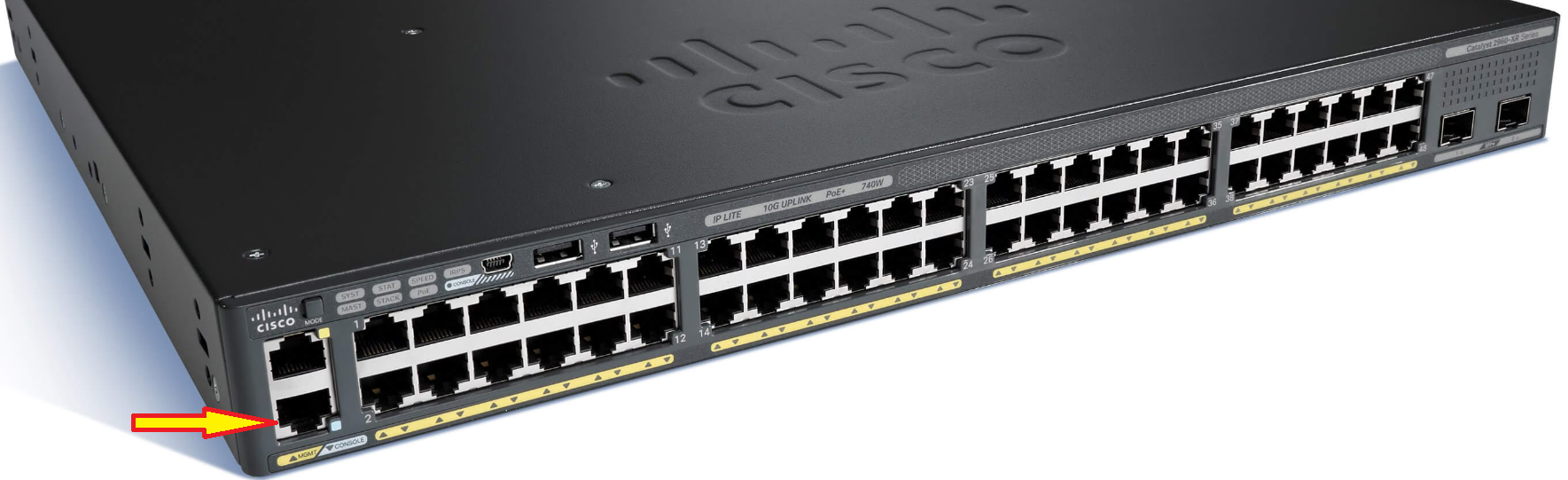
Step 2: Power On While Holding the Mode Button
Unplug the power cable. Press and hold the Mode button, and plug the power cable back in. Keep holding the button for about 15 seconds, until the switch: prompt appears in the console, then release it.
Step 3: Initialize the Flash File System
Initialize the flash file system so you can access the files on it.
switch: flash_init
Step 4: Check the Files in Flash
List the files in flash. You should see config.text (the saved configuration) and vlan.dat (the VLAN database).
switch: dir flash:
Step 5: Delete the Configuration File
Delete the saved configuration from flash.
switch: delete flash:config.text
Are you sure you want to delete "flash:config.text" (y/n)?y
Step 6: Delete the VLAN Database
Delete the VLAN file from flash.
switch: delete flash:vlan.dat
Are you sure you want to delete "flash:vlan.dat" (y/n)?y
If dir flash: also shows private-config.text or multiple-fs, delete those files in the same way.
Step 7: Boot the Switch
Boot the switch with the boot command. It loads the IOS and starts with factory default settings.
switch: boot
How to Verify the Factory Reset
After the reset, the switch boots and asks whether you want to enter the initial configuration dialog. This confirms that no saved configuration exists.
Would you like to enter the initial configuration dialog? [yes/no]: no

Switch>enable
Switch#show vlan brief
The hostname is back to Switch, and show vlan brief should list only the default VLANs: VLAN 1 and VLANs 1002 to 1005. If your old VLANs still appear, delete flash:vlan.dat again and reload.
Frequently Asked Questions
Does a factory reset delete the IOS on a Cisco 2960?
No. A factory reset removes only the configuration and VLAN files. The IOS image stays in flash, and the switch boots normally.
Why are my VLANs still there after write erase?
Because VLANs are stored in vlan.dat, not in the startup configuration. Run delete flash:vlan.dat and reload the switch.
How do I reset a Cisco 2960 if I forgot the password?
Use Method 3. Hold the Mode button while powering on the switch to reach the switch: prompt, then delete config.text and vlan.dat and run boot.
Can I factory reset the switch remotely?
Yes, with Method 2 over SSH. However, after the reload the switch has no IP address or login configured, so you will lose remote access and need console access to set it up again.
Other Important Topics
- IOS Upgrade of Cisco 2960 Switch Stack
- Firmware or IOS Upgrade of Cisco Switches
- %SW_MATM-4-MACFLAP_NOTIF: How to Fix MAC Address Flapping on Cisco Switches
- Spanning Tree Protocol – STP
- How to Configure Port-Channel (EtherChannel) on Cisco Switches
Disclaimer: This article is for educational purposes only and is not professional financial, medical, or legal advice. It may contain affiliate links, which earn us a small commission at no extra cost to you. See our Disclaimer and Affiliate Disclosure.
Article ID: EA00166