Scenario:
Make: GitHub
Operating System: Windows, Linux and macOS
Mode: CLI [Terminal, PowerShell, Command Prompt] and GitHub CLI
Description: In this article, we will discuss a stepwise method of how to clone a GitHub repository to your computer using HTTPS, SSH and the GitHub CLI, how to clone into a specific folder or branch, and how to fix the most common cloning errors.
Cloning downloads a complete copy of a repository, including all files, branches and the full history of changes, to your computer. The copy stays connected to GitHub, so you can pull the latest changes and push your own work back later.
Prerequisites
- Git installed on your computer. If it is not installed yet, follow How to Install Git on Windows Machines or How to Install Git on Linux.
- A GitHub account, only if the repository is private or you want to push changes. Public repositories can be cloned by anyone without signing in.
- Access to the repository if it is private; the owner must add you as a collaborator.
Which Cloning Method Should You Use?
| Method | How You Sign In | Best For |
| HTTPS | Browser sign-in or Personal Access Token | Beginners, and networks that block SSH |
| SSH | SSH key (set up once) | Regular use without typing credentials |
| GitHub CLI | gh auth login (set up once) | People who already use the GitHub CLI |
Important Note: GitHub no longer accepts your account password for Git operations over HTTPS. Since August 2021, you must sign in through your browser (Git Credential Manager) or use a Personal Access Token [PAT] instead.
Step 1: Copy the Repository URL
This step is the same for every method.
Step 1: Open the Repository
Go to github.com, sign in if the repository is private, and open the repository you want to clone.

Step 2: Click “Code”
On the repository’s main page, click the green “Code” button.

Step 3: Copy the URL for Your Method
Select the HTTPS, SSH or GitHub CLI tab and click the copy icon. Then continue with the matching method below.
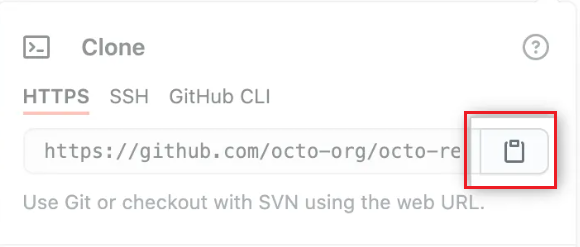
Method 1: Clone Using HTTPS
Open Terminal (Linux or macOS), or PowerShell or Command Prompt (Windows). Go to the folder where you want the repository, then run git clone with the URL you copied:
cd ~/projects
git clone https://github.com/YOUR-USERNAME/YOUR-REPOSITORY.git
For a public repository, the download starts straight away. For a private one, Git asks you to sign in. On Windows, Git Credential Manager usually opens a browser window for this. On Linux, enter your GitHub username and, when asked for a password, paste your Personal Access Token.
A successful clone looks like this:
$ git clone https://github.com/edledge/test.git
Cloning into 'test'...
remote: Enumerating objects: 4461, done.
remote: Counting objects: 100% (2113/2113), done.
remote: Compressing objects: 100% (790/790), done.
Receiving objects: 100% (4461/4461), 1.34 MiB | 1.85 MiB/s, done.
Resolving deltas: 100% (3605/3605), done.
Method 2: Clone Using SSH
SSH needs a one-time setup: create an SSH key on your computer and add the public key to your GitHub account under “Settings” > “SSH and GPG keys”. The steps are shown in How to Install Git on Linux (Step 7).
Select the SSH tab under “Code” and copy the URL. It starts with git@github.com:.
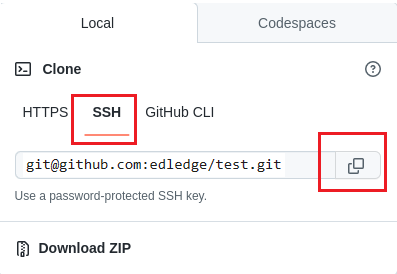
Then run:
git clone git@github.com:YOUR-USERNAME/YOUR-REPOSITORY.gitThe first time you connect, you will be asked to confirm GitHub’s host key. Type yes and press Enter:
$ git clone git@github.com:edledge/test.git
Cloning into 'test'...
The authenticity of host 'github.com (140.82.114.3)' can't be established.
ED25519 key fingerprint is SHA256:+DiY3wvvV6TuJJhbpZisF/zLDA0zPMSvHdkr4UvCOqU.
Are you sure you want to continue connecting (yes/no/[fingerprint])? yes
...
Resolving deltas: 100% (201/201), done.
You can check that the fingerprint matches the one published in GitHub’s documentation before typing yes.
Method 3: Clone Using the GitHub CLI
The GitHub CLI (gh) is GitHub’s own command-line tool. Install it from cli.github.com, then sign in once:
gh auth loginFollow the prompts to sign in through your browser. Then select the GitHub CLI tab under “Code”, copy the command and run it:
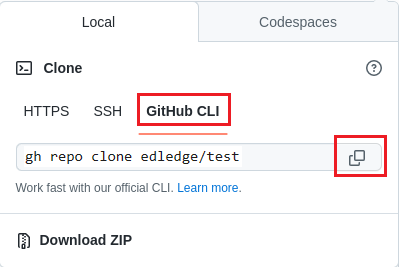
gh repo clone YOUR-USERNAME/YOUR-REPOSITORYFor example:
gh repo clone edledge/testUseful Clone Options
Clone into a folder with a different name:
git clone https://github.com/YOUR-USERNAME/YOUR-REPOSITORY.git my-folderClone a specific branch:
git clone -b develop https://github.com/YOUR-USERNAME/YOUR-REPOSITORY.gitClone only the latest version (faster for very large repositories, without the full history):
git clone --depth 1 https://github.com/YOUR-USERNAME/YOUR-REPOSITORY.gitVerify the Clone
Move into the new folder and check the connection to GitHub:
cd YOUR-REPOSITORY
git remote -v
git status
git remote -v should show the GitHub URL as origin, and git status should report that your branch is up to date. The repository is now ready to use.
Troubleshooting
- “Authentication failed” or “Support for password authentication was removed” – you entered your GitHub password. Use browser sign-in or a Personal Access Token instead.
- “Permission denied (publickey)” – your SSH key is not set up or not added to GitHub. Test it with ssh -T git@github.com.
- “Repository not found” – check the URL for typos. For private repositories, make sure you are signed in with an account that has access.
- “git is not recognized” or “command not found” – Git is not installed, or the terminal was opened before installing. Install Git and open a new terminal.
- “destination path already exists” – a folder with that name is already there. Delete or rename it, or clone into a different folder name.
Frequently Asked Questions
What is the difference between cloning and downloading a ZIP?
A ZIP download gives you only the current files, with no history and no connection to GitHub. A clone includes the full history and lets you pull updates and push changes.
What is the difference between clone and fork?
A fork creates your own copy of someone else’s repository on GitHub. A clone copies a repository from GitHub to your computer. Often you fork a project first and then clone your fork.
Should I use HTTPS or SSH?
HTTPS is easier to start with and works on almost every network. SSH is more convenient for regular use, because once your key is set up you do not need to sign in again.
Disclaimer: This article is for educational purposes only and is not professional financial, medical, or legal advice. It may contain affiliate links, which earn us a small commission at no extra cost to you. See our Disclaimer and Affiliate Disclosure.
Article ID: EA00135