Scenario:
Make: Microsoft
Product: Microsoft Teams (new and classic) and Microsoft Outlook (classic desktop app)
Mode: GUI (Graphical User Interface)
Description: In this article, we will discuss why the presence status of your contacts is missing in Outlook after moving from Skype for Business to Microsoft Teams, and how to fix it step by step.
Presence is the small coloured status indicator next to a person’s name or photo in Outlook. It shows whether someone is available (green), away (yellow), busy (red) or offline. With Skype for Business, this worked automatically. After switching to Microsoft Teams, however, the status often disappears, because Outlook still looks for Skype as its chat app.
The image below shows presence working correctly in Outlook.

Problem
After switching to Microsoft Teams, the presence status no longer appears next to contacts in Outlook, as shown in the image below.

Why Is Teams Presence Not Showing in Outlook?
| Cause | Fix |
| Teams is not registered as the chat app for Office | Enable “Register Teams as the chat app for Office” (Steps 1 to 3) |
| Teams is not running or not signed in | Start Teams and sign in with the same account as Outlook |
| Online status is turned off in Outlook | Enable “Display online status next to name” in Outlook options |
| Skype for Business is still set as the default chat app | Check the IM provider registry value (see Troubleshooting) |
Solution
To bring presence back, register Microsoft Teams as the chat app for Office, so that Outlook reads presence from Teams instead of Skype. Follow the steps below.
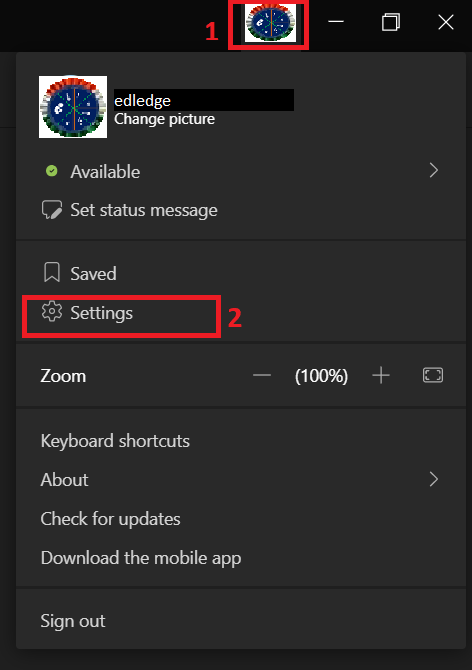
Step 1: Open Teams Settings
In Microsoft Teams, click the three dots (Settings and more) next to your profile picture at the top right, and then click Settings.
Step 2: Register Teams as the Chat App for Office
Under General, enable “Register Teams as the chat app for Office“. Then fully quit Teams: right-click the Teams icon in the system tray and click Quit.
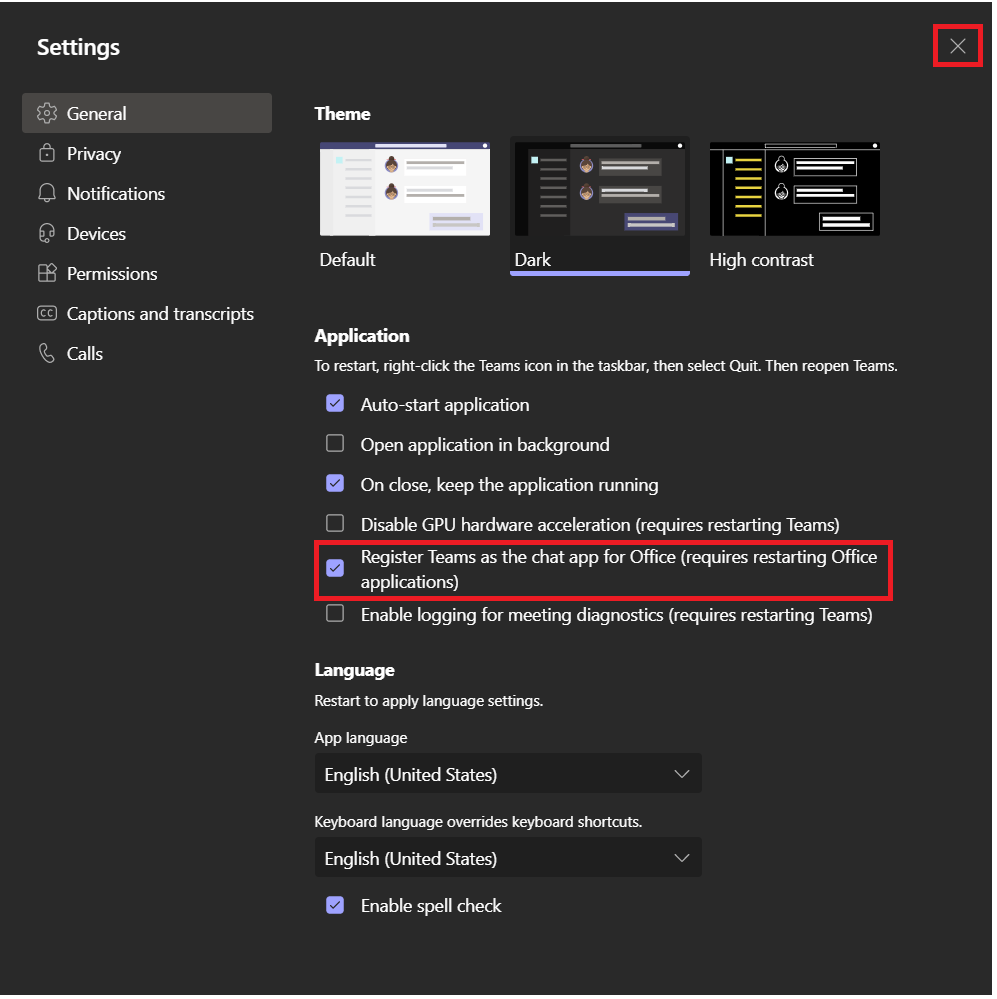
The screenshots above are from classic Teams. In the new Teams, the option is in the same place (Settings => General), but the layout looks slightly different.
Step 3: Restart Teams and Outlook
Close Outlook completely, start Teams again and sign in, and then open Outlook. The presence status will now show next to your contacts.

Important Note: Outlook gets presence from the Teams app running on your computer. If Teams is closed or signed out, presence will disappear again, so keep Teams running and signed in.
Troubleshooting: Presence Still Not Showing
Check 1: Enable Online Status in Outlook
In Outlook, go to File => Options => People (or Contacts) and make sure “Display online status next to name” is ticked. Restart Outlook.
Check 2: Use the Same Account in Teams and Outlook
Teams and Outlook must be signed in with the same work or school account. If you use a different account in Teams, Outlook cannot read presence from it.
Check 3: Check the Default IM App in the Registry
Press Windows + R, type regedit and go to the key below. The DefaultIMApp value should be MsTeams (new Teams) or Teams (classic Teams). If it still shows Lync, Skype for Business is set as the chat app. Repeat Steps 1 to 3, or ask your IT team to remove Skype for Business.
HKEY_CURRENT_USER\Software\IM Providers
DefaultIMApp = MsTeams
Important Note: Be careful when editing the registry. If you are on a company computer, ask your IT team before making changes.
Frequently Asked Questions
Why does Outlook not show Teams status?
Usually because Teams is not registered as the chat app for Office, or because Teams is not running. Enable the setting in Teams, restart Teams and Outlook, and keep Teams signed in.
Does Teams presence work in the new Outlook?
Yes. The new Outlook for Windows and Outlook on the web show Teams presence directly from Microsoft 365, so the chat app setting mainly applies to the classic Outlook desktop app.
Do I need to uninstall Skype for Business?
Not always, but if Skype for Business is still installed it can take over as the chat app for Office. If presence keeps disappearing, ask your IT team to remove it or to set your account to Teams Only mode.
Other Important Topics
- Microsoft Teams Error – CDL_WORKER_FAILURE – We’ve run into an issue
- Black Screen Issue Over Video Call On Microsoft Teams
- Updating Contact List in Microsoft Outlook 365
- Microsoft Outlook Is Showing Emails Of Past One Year Only
- Black Screen Issue Over Video Call On Microsoft Teams
Disclaimer: This article is for educational purposes only and is not professional financial, medical, or legal advice. It may contain affiliate links, which earn us a small commission at no extra cost to you. See our Disclaimer and Affiliate Disclosure.
Article ID: EA00051