Scenario:
Make: SonicWall Network Security Appliance [NSA]
Model: NSA 6600, NSA 3600, NSA 2400, and other Gen6 NSA models
Mode: GUI [Graphical User Interface]
Version: SonicOS 6.5.4.x
Description: This article explains the SonicWall high availability (HA) modes and shows a step-by-step method to configure high availability (failover) between two SonicWall NSA firewalls.
What Is SonicWall High Availability?
High availability (HA) connects two identical SonicWall firewalls so that if one fails, the other takes over automatically. The primary unit holds the configuration and licenses, and the secondary unit stays in sync with it. Both units share the same virtual IP addresses, so users and devices on the network do not need any changes when a failover happens.
SonicWall HA Modes
SonicOS 6.5 offers the following high availability modes:
- Active/Standby: Only one unit (the active unit) processes traffic, while the other stays in standby. If the active unit fails, the standby unit takes over. Without stateful synchronization, existing connections are dropped and must reconnect after a failover.
- Active/Standby with Stateful Synchronization: Same as Active/Standby, but the units continuously share connection and VPN state over the HA data link. Existing sessions continue without interruption after a failover. This requires a stateful HA license.
- Active/Active DPI: The active unit still handles the traffic, but the standby unit takes over the deep packet inspection (DPI) work, such as Gateway Anti-Virus, Intrusion Prevention, and Application Control. This spreads the processing load across both units. It requires an extra physical link between the units.
- Active/Active Clustering: Multiple HA pairs (cluster nodes) actively process traffic at the same time, each for a different set of virtual groups. This is used in larger deployments.
For most networks, Active/Standby with stateful synchronization is the recommended setup. This article uses Active/Standby as the example.
Prerequisites
- Identical hardware: Both units must be the same model, for example two NSA 2400s.
- Same firmware: Both units should run the same SonicOS version. Refer to our guide on SonicWall NSA firmware upgrade if they differ.
- HA pair registration: Register both units in MySonicWall and associate the secondary unit with the primary as an HA pair. This lets the secondary share the primary’s licenses. Refer to our article on how to activate or renew SonicWall NSA licenses.
- Secondary serial number: Note the serial number of the secondary unit, printed on its label.
- Free interfaces: One unused interface on each unit for the HA control link, and one for the HA data link.
SonicWall NSA High Availability Configuration
Step1: Physical Connection
Connect the two SonicWall NSA units directly with cables on the HA interfaces. In this example, we have connected both units on interfaces X2 and X3:
- X2: HA control link. It carries heartbeats and configuration synchronization between the units.
- X3: HA data link. It carries connection state information when stateful synchronization is enabled.
Also connect the same LAN and WAN interfaces of the secondary unit to the same switches as the primary, so it can take over traffic after a failover. Leave the secondary at its factory default settings, since it will receive its configuration from the primary.
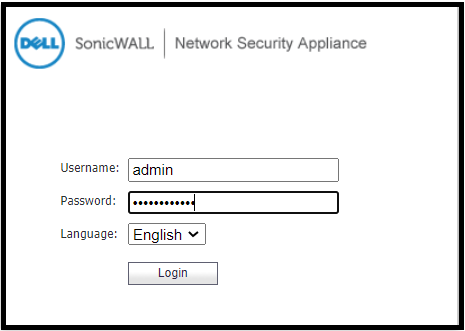
Step2: Login
Log in to the primary NSA unit using an administrator username and password.
Step3: Check the Interfaces
Go to the interfaces page and make sure the HA control and HA data interfaces (X2 and X3) are not assigned to any zone, and that both show as connected (UP).

Step4: HA Mode
Go to Manage > High Availability > Base Setup. On the General tab, select the HA mode, for example Active/Standby. If you have a stateful HA license, also check Enable Stateful Synchronization.

Step5: HA Devices
On the HA Devices tab, enter the serial number of the secondary unit, as shown below.

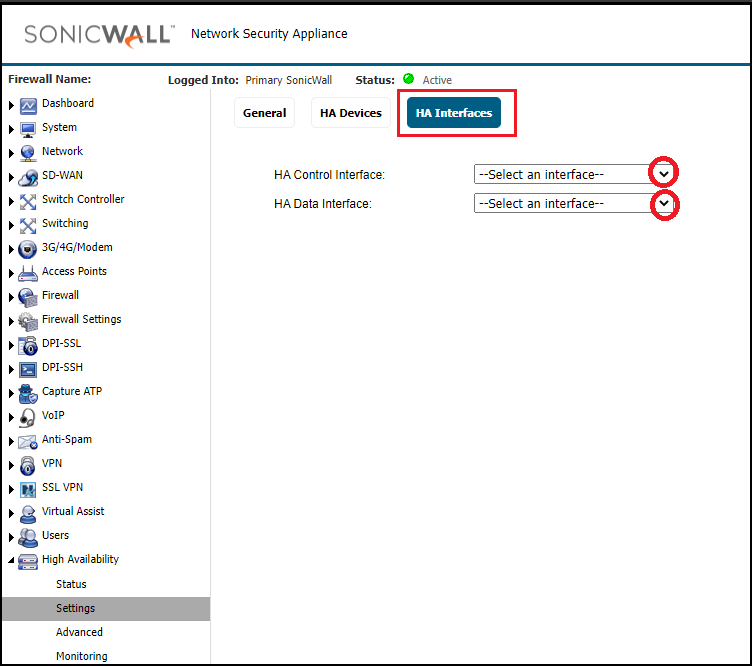
Step6: HA Interfaces
On the HA Interfaces tab, select the interfaces you connected in Step 1. In this example, X2 is the HA control interface and X3 is the HA data interface.
Step7: Save
Click Accept (or Apply) to save the configuration. Then power on the secondary unit. The primary will detect it over the HA control link and synchronize the configuration to it.
Optional Settings
- Advanced: Adjust the heartbeat interval and failover trigger level, enable Preempt Mode (so the primary becomes active again after it recovers), and use Synchronize Settings or Synchronize Firmware to push changes manually.
- Monitoring: Assign individual management IP addresses to the primary and secondary units on each interface, so you can log in to each unit separately. You can also enable physical or logical (probe) monitoring, so a failover happens when a link or an upstream device goes down, not only when a whole unit fails.
Verify and Test the Failover
Check the HA status page on the primary unit. A working pair shows the primary as Active, the secondary as Standby, and the configuration as synchronized.
To test the failover, schedule a maintenance window and either use the force failover option or disconnect a monitored interface on the primary unit. The secondary should become active within a few seconds, and traffic should continue to flow. Reconnect the interface afterwards and confirm the pair returns to a healthy state.
Frequently Asked Questions
Do I need to buy licenses for the secondary SonicWall?
Usually not. Once the secondary is associated with the primary as an HA pair in MySonicWall, it shares the primary’s security service licenses. Stateful synchronization may require a separate stateful HA license, depending on the model.
Can I use two different SonicWall models in HA?
No. Both units in an HA pair must be the same model.
Will users lose their connection during a failover?
With stateful synchronization enabled, existing connections and VPN tunnels continue without interruption. Without it, the failover still happens automatically, but users may need to reconnect their sessions.
Are these steps the same on SonicOS 7?
The concepts are the same, but the menus differ on Gen7 firewalls running SonicOS 7. This article covers SonicOS 6.5 on Gen6 NSA models.
Other Articles on SonicWall
- Site-to-Site IPSec VPN Configuration on SonicWall NSA
- Activate or Renew SonicWall NSA Licenses
- SonicWall NSA Firmware Upgrade
- SonicWall Software or SonicOS Release Types
Disclaimer: This article is for educational purposes only and is not professional financial, medical, or legal advice. It may contain affiliate links, which earn us a small commission at no extra cost to you. See our Disclaimer and Affiliate Disclosure.
Article ID: EA00105