Scenario:
Make: Ubiquiti
Software: UniFi Network Application (UniFi Controller)
Version: Reported on 8.6.9; similar behaviour can appear in other versions
Mode: GUI [Graphical User Interface]
Description: In this article, we will discuss how to fix the issue where the “Apply Changes” button in the UniFi Network controller is greyed out or does nothing, so settings cannot be saved. We cover the quick checks, the workarounds that worked in our lab on version 8.6.9, and the long-term fix.
Problem
After upgrading the UniFi controller to version 8.6.9, many users found that the “Apply Changes” button stopped working after changing a setting. For example, when optimising wireless performance, the button stays greyed out or clicking it has no effect, so the change is never saved.
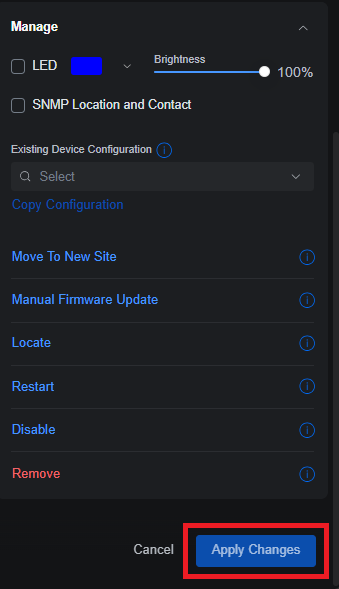
Why Does This Happen?
The UniFi interface only enables “Apply Changes” when every field on the settings page is valid, including fields you did not touch. In version 8.6.9, a value in another section of the same page, most often the Inform Host override, could fail this check after the upgrade. The page then quietly blocks saving without clearly showing which field is the problem. Browser caching of the old interface after an upgrade can cause similar symptoms.
Quick Checks First
- Scroll through the whole settings page and look for any field highlighted in red or showing a warning, even in sections you did not change. Fix or clear that field.
- Refresh without cache – press Ctrl + F5 (or Cmd + Shift + R on a Mac), or open the controller in a private/incognito window or a different browser.
- Disable browser extensions such as ad blockers for the controller page.
- Log out and back in using your UniFi username and password.
Workaround 1: Use the Legacy Interface
In our lab on version 8.6.9, switching to the Legacy user interface allowed changes to be saved normally. Follow the steps in the image below, or see How to Switch Between Legacy & New User Interface of Ubiquiti.
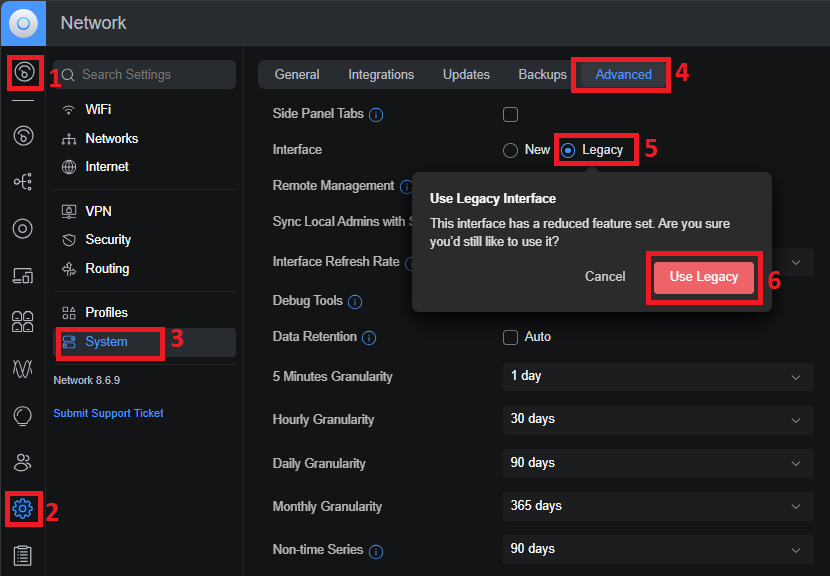
The legacy interface option is not available in every UniFi Network version. If you do not see it, use Workaround 2.
Workaround 2: Check the Inform Host Override
In many cases, the problem is the Inform Host setting, which tells UniFi devices which address to use to reach the controller. Go to “Settings” > “System” > “Advanced” and find “Inform Host” (also shown as “Override Inform Host”):
- If the override is enabled but the field is empty or invalid, enter the correct hostname or IP address of your controller, or turn the override off if you do not need it.
- If you do not use a custom inform address, disable the override. The “Apply Changes” button should then become active again.
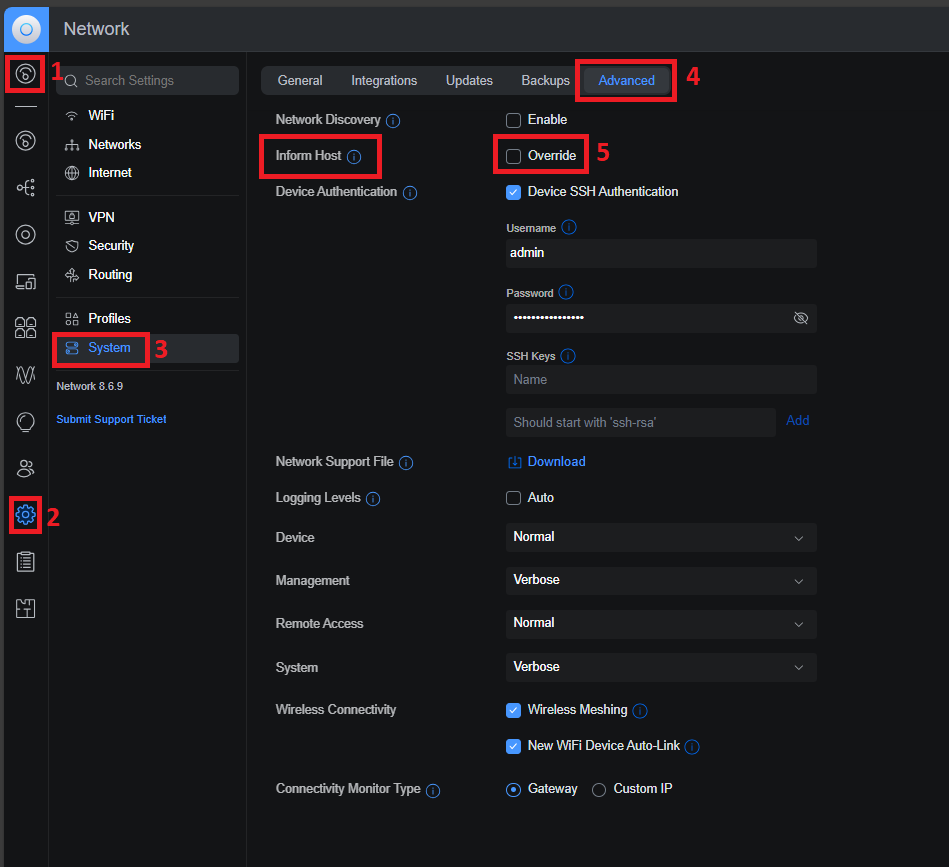
Important Note: If your controller is hosted in the cloud or behind NAT, your devices may depend on the Inform Host override to stay connected. Write down the current value before changing it. If you disable it to save another setting, re-enable it with the same value straight afterwards, or your access points and switches may go offline. See UniFi Access Point Inform Error if devices lose connection.
After either workaround, the “Apply Changes” button becomes active again:
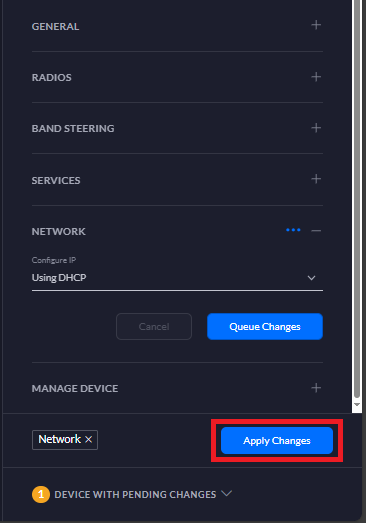
Permanent Fix: Update the UniFi Network Application
These workarounds are meant for version 8.6.9. The long-term solution is to update to a newer UniFi Network release, which also brings security and stability fixes. Before updating, download a backup from “Settings” > “System” > “Backups” and read the release notes. For the update steps, see Ubiquiti UniFi Controller Firmware Upgrade.
Troubleshooting
- Button is still greyed out after the workarounds – try another browser or the UniFi mobile app, and check every section of the page for invalid values.
- Changes save but are not applied to devices – check that the devices show Online and are not stuck in Provisioning or Adopting.
- Devices go offline after changing the Inform Host – restore the original Inform Host value, then re-adopt the devices if needed.
Frequently Asked Questions
Why is “Apply Changes” greyed out in UniFi?
Usually because a field somewhere on the same page has an invalid or empty value, or because of a known issue in a specific version such as 8.6.9. Check for highlighted fields, refresh the browser without cache, and check the Inform Host override.
Will disabling the Inform Host override break my network?
Not if your devices can find the controller without it, for example when they are on the same local network. If your controller is in the cloud or behind NAT, keep the override enabled with the correct address.
Disclaimer: This article is for educational purposes only and is not professional financial, medical, or legal advice. It may contain affiliate links, which earn us a small commission at no extra cost to you. See our Disclaimer and Affiliate Disclosure.
Article ID: EA00168