How to Turn On 2-Step Verification (Two-Factor Authentication) in Gmail

5
(1)

Scenario:
Make
: Google
Service: Gmail / Google Account
Device: Computer, Android and iPhone
Description: In this article, we will discuss a stepwise method of how to turn on two-factor authentication (called 2-Step Verification by Google) for your Gmail account, which verification methods to choose, how to save backup codes, and what to do if you lose your phone.

What Is 2-Step Verification?

With 2-Step Verification, signing in to Gmail needs two things: your password and a second step that proves it is really you, such as a prompt on your phone or a code from an app. Even if someone steals your password, they cannot get into your account without that second step.

Google has been turning on 2-Step Verification automatically for many accounts since 2021, and strongly recommends it for everyone. If you are already being asked for a code when you sign in, it is likely already on; you can check and manage it using the steps below.

If you receive verification codes you did not request, someone may be trying to sign in with your password. See Receiving Unwanted Google Account Verification Code? and change your password straight away.

Choose Your Second Step

MethodHow It WorksSecurity
Google promptTap “Yes, it’s me” on your signed-in phoneHigh; easy to use
Passkey or security keyUnlock with your phone’s fingerprint, face or PIN, or a USB/NFC keyHighest; resistant to phishing
Authenticator app6-digit code from Google Authenticator or a similar appHigh; works without mobile signal
Text message or call6-digit code sent by SMS or voice callBasic; better than nothing
Backup codesOne-time codes you print or saveEmergency use only

For most people, the best setup is the Google prompt or a passkey as the main method, plus an authenticator app and backup codes as fall-backs.

Turn On 2-Step Verification on a Computer

Step 1: Sign In to Gmail
Open gmail.com and sign in to your account.

Step 2: Open Your Google Account
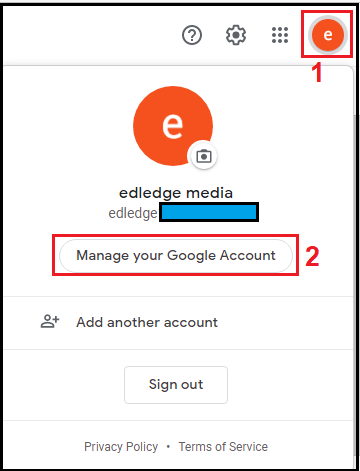
Click your profile picture at the top right and select “Manage your Google Account”. You can also go directly to myaccount.google.com.

Manage your Google Account option in Gmail

Step 3: Go to Security
In the left menu, click “Security” (called “Security & sign-in” in newer versions), then find “2-Step Verification” under “How you sign in to Google”.

2-Step Verification option in Google Account security settings

Step 4: Start the Setup
Click “2-Step Verification”. If Google asks you to sign in again, enter your password to confirm it is you.

Open 2-Step Verification settings in a Google Account
Google Account sign-in page to confirm identity

Step 5: Add a Second Step and Turn It On
Add at least one second step, for example your phone number (verify it with the code Google sends you), the Google prompt or an authenticator app. Then click “Turn on 2-Step Verification”.

Turn on 2-Step Verification for a Gmail account

The screenshot shows “Turn off” because 2-Step Verification is already active on this account. On your account, you will see “Turn on” instead. The Google Account pages are updated from time to time, so the layout may look slightly different.

Step 6: Confirm It Is On
The 2-Step Verification page now shows that it is on, along with the second steps you added.

Gmail 2-Step Verification successfully turned on

Turn On 2-Step Verification on Android or iPhone

  • Android: open Settings > Google > Manage your Google Account > Security > 2-Step Verification.
  • iPhone or iPad: open the Gmail app, tap your profile picture > Manage your Google Account > Security > 2-Step Verification.
  • Then follow the same steps as on a computer.

Save Your Backup Codes

Backup codes let you sign in if you lose your phone or cannot receive codes. On the 2-Step Verification page, open “Backup codes”, click “Get backup codes”, and print or store them somewhere safe, such as a password manager. Each code works only once.

Important Note: Without backup codes or a second method, losing your phone can lock you out of your Gmail account. Always add at least two ways to verify, and keep your recovery phone number and recovery email up to date.

After Turning It On: Email Apps

Most modern apps, including the Gmail app and current versions of Microsoft Outlook, let you sign in through Google’s own sign-in page and work normally with 2-Step Verification. Older email programs that only ask for a username and password may stop working. If Outlook stopped connecting to Gmail, see Broken Outlook Gmail Connection after Google 2-Step Verification.

Troubleshooting

  • Not receiving the SMS code – check the phone number, mobile signal and that messages from short codes are not blocked. Use “Try another way” to choose the Google prompt, an authenticator app or a backup code instead.
  • Lost or replaced your phone – sign in with a backup code or another method, then remove the old phone and add the new one in 2-Step Verification. If you have no other method, use Google’s account recovery page.
  • Authenticator codes are rejected – the phone’s time may be wrong. Turn on automatic date and time in your phone settings.
  • Cannot find the 2-Step Verification option – if you use a work or school account, your administrator may control this setting.

Frequently Asked Questions

Is 2-Step Verification the same as two-factor authentication?

Yes. 2-Step Verification is Google’s name for two-factor authentication (2FA).

Will Google ask for a code every time I sign in?

No. On your own devices, you can tick “Don’t ask again on this device”. Google then mainly asks for the second step on new devices or unusual sign-ins.

Can I turn off 2-Step Verification?

For personal accounts, yes, from the same page. However, it is strongly recommended to keep it on, as it is one of the most effective ways to protect your account.

If Microsoft Outlook shows only the past year of emails, you can change a setting to see all of them. Learn how in Microsoft Outlook Show Emails Of Past One Year Only.

Source: Knowledge Base, Lab, Google Account Help

Disclaimer: This article is for educational purposes only and is not professional financial, medical, or legal advice. It may contain affiliate links, which earn us a small commission at no extra cost to you. See our Disclaimer and Affiliate Disclosure.

Article ID: EA00089

Worth your time? Give it a rating

Click on a star to rate it!

We are sorry that this post was not useful for you!

Let us improve this post!

Tell us how we can improve this post?

Leave a Comment

Your email address will not be published. Required fields are marked *

Scroll to Top
×