
Scenario
Make: Ubiquiti
Model: Unifi Access Points
Mode: CLI [Command Line Interface] & GUI [Graphical User Interface]
Description: This article explains how to factory reset Ubiquiti UniFi access points. You can restore an access point to its factory-default settings in several ways; this guide outlines a few of the most common.
Physical Reset
The physical reset is the simplest and most common way to restore a UniFi access point to its factory-default settings. To perform a physical reset, you will need a small pointed object, such as a SIM tray pin from a mobile phone.
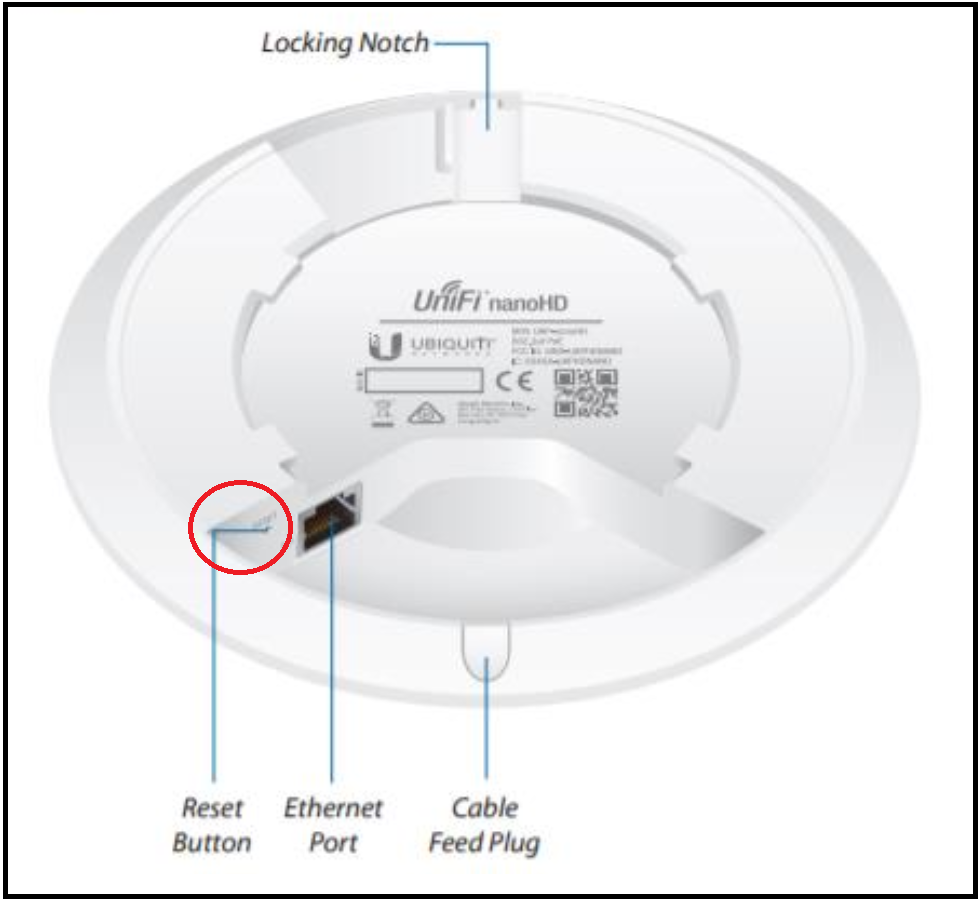
Step1: Locate the reset button on the back of the UniFi access point, positioned near the Ethernet port and labeled “RESET.” As illustrated in the image below, this is the button you will use to perform a physical reset.

Step2: Keep the Power or PoE cable connected
Step3: Press gently [Do not apply a lot of force] and hold the reset button pressed using the metal pin for 10 seconds.
Step4: Release the button after 10 seconds and Unifi LED will stop glowing.
Step5: Access Point will reboot [do not disconnect the power or PoE cable] and LED will come back.
Debug Terminal Reset
You can also reset an access point through the debug terminal in the UniFi Controller. This option is not available on all models or firmware versions, but when supported, it provides a convenient way to restore the device to its factory-default settings.
Step1: On the controller, go to Devices and select the access point you want to reset.
Step2: Click “Configuration” in “Properties” and then navigate to “Manage“
Step3: Find Debug Terminal at the bottom
Step4: Paste the command syswrapper.sh restore-default and hit enter to execute the command

SSH Reset
SSH provides a convenient way to remotely reset a UniFi access point. With SSH access, there’s no need to physically remove the device from its mounting location or press the reset button.All you need is a network connection to the access point, so you can log in via SSH and run the reset command. If you are having issues in doing SSH into Unifi access point please follow the steps of SSH Ubiquiti Unifi Access Point. If you do not have the password you could try with Unifi Default Username Password.
Step1: Ping and ensure access point is reachable which needs to reset
Step2: SSH into access point using username and password
Step3: Paste the command syswrapper.sh restore-default and hit enter to execute the reset process
login as: admin
admin@10.1.2.3's password: password

BusyBox v1.25.1 () built-in shell (ash)

___ ___ .__________.__
| | |____ |__\_ ____/__|
| | / \| || __) | | (c) 2010-2020
| | | | \ || \ | | Ubiquiti Networks, Inc.
|______|___| /__||__/ |__|
|_/ https://www.ui.com/

Welcome to UniFi UAP-nanoHD!

edledge-ap-BZ.5.43.19# syswrapper.sh restore-default
Clearing CFG ... [%100] done!
Step5: As soon as Clearing CFG reaches 100%, the access point resets to its factory-default settings.
Step6: The access point will reboot to complete the reset process.
You can use any of the methods above to reset a UniFi access point to its factory-default settings. The choice of method depends on your situation—for example, whether you have physical access to the device, prefer to manage it remotely, or need to use the controller interface. Regardless of the approach, each option ultimately restores the access point to its original configuration, allowing you to set it up again as if it were brand new.
Disclaimer: This article is for educational purposes only and is not professional financial, medical, or legal advice. It may contain affiliate links, which earn us a small commission at no extra cost to you. See our Disclaimer and Affiliate Disclosure.
Article ID: EA00034