Scenario:
Make: Microsoft
Model: Azure VPN Gateway
Mode: Azure Portal [GUI], PowerShell and Azure CLI
Description: In this article, we will discuss a stepwise method of how to reset an Azure VPN connection and an Azure virtual network gateway, when to use each option, and what to check before and after the reset. These steps help fix Site-to-Site tunnels that will not come up and Point-to-Site users who cannot connect.
Setting up the VPN for the first time? Follow How to Configure a Site-to-Site VPN on Microsoft Azure.
Connection Reset vs. Gateway Reset
Azure offers two different reset options. Choosing the right one avoids unnecessary downtime:
| Option | What It Does | Affects | Use It When |
| Connection reset | Tears down and rebuilds one IPsec tunnel | Only that one Site-to-Site or VNet-to-VNet connection | One tunnel is down or stuck while others work |
| Gateway reset | Reboots the VPN gateway instances | All tunnels and all Point-to-Site users on that gateway | Several tunnels are down, Point-to-Site users cannot connect, or a connection reset did not help |
Point-to-Site VPNs do not have a separate connection object in Azure. If remote users cannot connect, use the gateway reset.
Before You Reset
- Expect a short outage. A reset interrupts traffic through the affected tunnels for a few minutes. Plan it outside business hours if possible.
- Check the basics first. Many tunnels that seem stuck are caused by configuration changes, such as a changed public IP, shared key, subnets or IPsec settings on the on-premises firewall. A reset will not fix a mismatch.
- Use the built-in diagnostics. On the virtual network gateway, open “VPN troubleshoot” (under Help or Monitoring) to run a check and see the reason for the failure.
- No configuration is lost. Neither reset changes your gateway settings, public IP address, connections or shared keys.
Option 1: Reset a VPN Connection
Step 1: Sign in to the Azure Portal
Log in to https://portal.azure.com.
Step 2: Open Connections
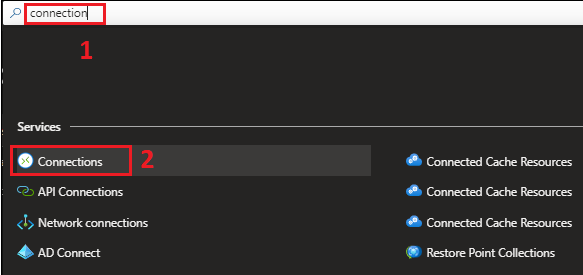
In the top search bar, type “Connections” and select it. All your VPN connections are listed with their status.
Step 3: Select the Connection
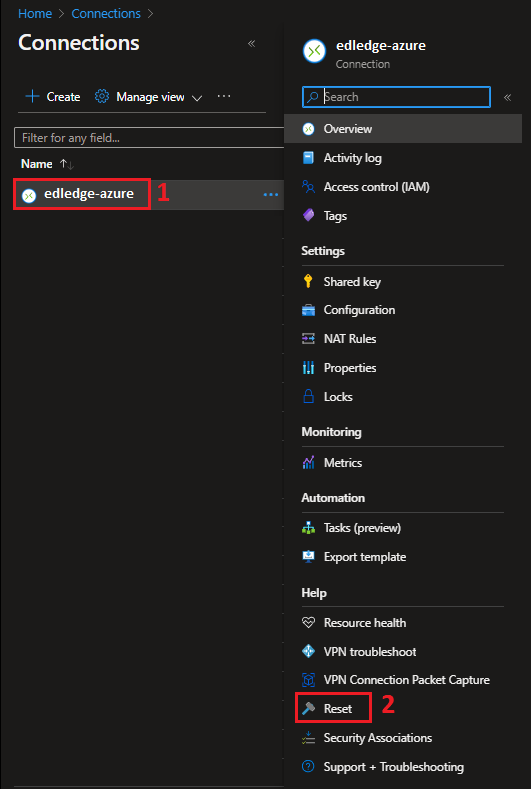
Click the connection that is down, for example one showing “Not connected” or “Connecting”.
Step 4: Reset the Connection
In the left menu, under Help or Support + troubleshooting, select “Reset”, then click the “Reset” button and confirm.
Step 5: Check the Status
Wait a few minutes, then return to the connection’s Overview page. The status should change back to Connected.
Option 2: Reset the Virtual Network Gateway
Step 1: Open Virtual Network Gateways
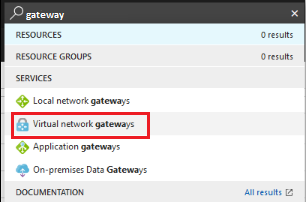
In the top search bar, type “Virtual network gateways” and select it.
Step 2: Select the Gateway
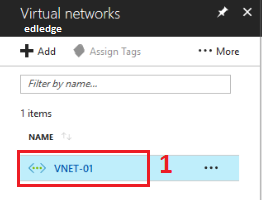
Click the VPN gateway you want to reset.
Step 3: Reset the Gateway
In the left menu, under Help or Support + troubleshooting, select “Reset”, then click the “Reset” button and confirm.
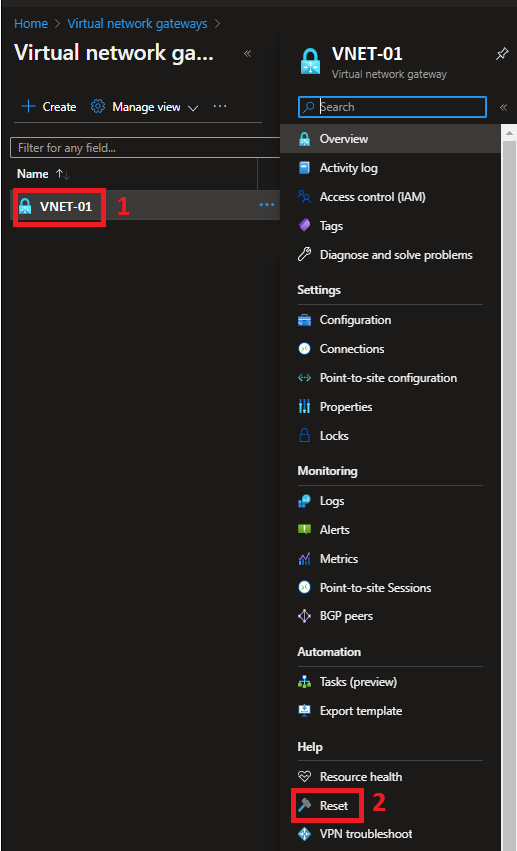
Step 4: Wait and Verify
Azure reboots the gateway instances one after the other. Wait several minutes, then check that your connections show Connected and that Point-to-Site users can connect again.
Important Note: If the tunnels are still down a few minutes after the first reset, run the reset once more. Each reset reboots one gateway instance, so a second reset makes sure both instances have been restarted.
Reset with PowerShell or Azure CLI
You can also reset the gateway from the command line, which is useful for scripts and automation. Replace the resource group and gateway names with your own.
Azure PowerShell:
$gw = Get-AzVirtualNetworkGateway -Name "edledge-virtual-gateway" -ResourceGroupName "RG-Network"
Reset-AzVirtualNetworkGateway -VirtualNetworkGateway $gw
Azure CLI:
az network vnet-gateway reset --resource-group RG-Network --name edledge-virtual-gatewayStill Not Working? Next Checks
- Site-to-Site – confirm the shared key, public IPs, address spaces and IKE/IPsec settings match on both sides, and that UDP ports 500 and 4500 are allowed on the on-premises firewall. Device-specific guides: Azure & Cisco ASA and Azure & SonicWall.
- Point-to-Site – if you changed the gateway’s Point-to-Site settings, such as the address pool, certificates or authentication type, users must download and install the VPN client profile again. Also check that the client certificate is valid and not revoked.
- Check the logs – enable diagnostic logs on the gateway (Diagnostic settings) to see detailed IKE and tunnel events.
Frequently Asked Questions
Does resetting an Azure VPN gateway change its public IP?
No. The public IP address and all configuration stay the same.
How long does an Azure VPN gateway reset take?
Usually a few minutes. Traffic through the gateway is interrupted while the instances reboot.
Can I reset a Point-to-Site connection on its own?
No. Point-to-Site users connect directly to the gateway, so the only option is a gateway reset. Individual users can simply disconnect and reconnect their VPN client.
Disclaimer: This article is for educational purposes only and is not professional financial, medical, or legal advice. It may contain affiliate links, which earn us a small commission at no extra cost to you. See our Disclaimer and Affiliate Disclosure.
Article ID: EA00125