Scenario:
Make: SonicWall
Model: SonicWall NSA (Network Security Appliance) series, e.g. NSA 2400, NSA 250M, NSA 3600, NSA 6600, and newer NSA and TZ firewalls
Mode: GUI [Graphical User Interface] and MySonicWall portal
Description: In this article, we will discuss three methods to activate or renew SonicWall firewall licenses and security services, such as Gateway Anti-Virus, Intrusion Prevention, Content Filtering and support, using an activation key on the firewall, using MySonicWall from the firewall, or using the MySonicWall portal.
Before You Start
- Have the activation key ready. This is the key you received from SonicWall or your reseller when you bought or renewed the subscription.
- Register the firewall in MySonicWall. Licenses are linked to the firewall’s serial number in your MySonicWall account. If the firewall is not registered yet, register it first using its serial number and authentication code (printed on the device label).
- Check internet access from the firewall. Methods 2 and 3 need the firewall to reach SonicWall’s licensing servers, so its DNS, default route and date and time must be correct.
- Enable MFA on MySonicWall. SonicWall requires multi-factor authentication for MySonicWall accounts. See SonicWall Mandates Two Factor Authentication or MFA.
Where to Find Licenses on the Firewall
The menu location depends on your SonicOS version:
| SonicOS Version | Licenses Menu |
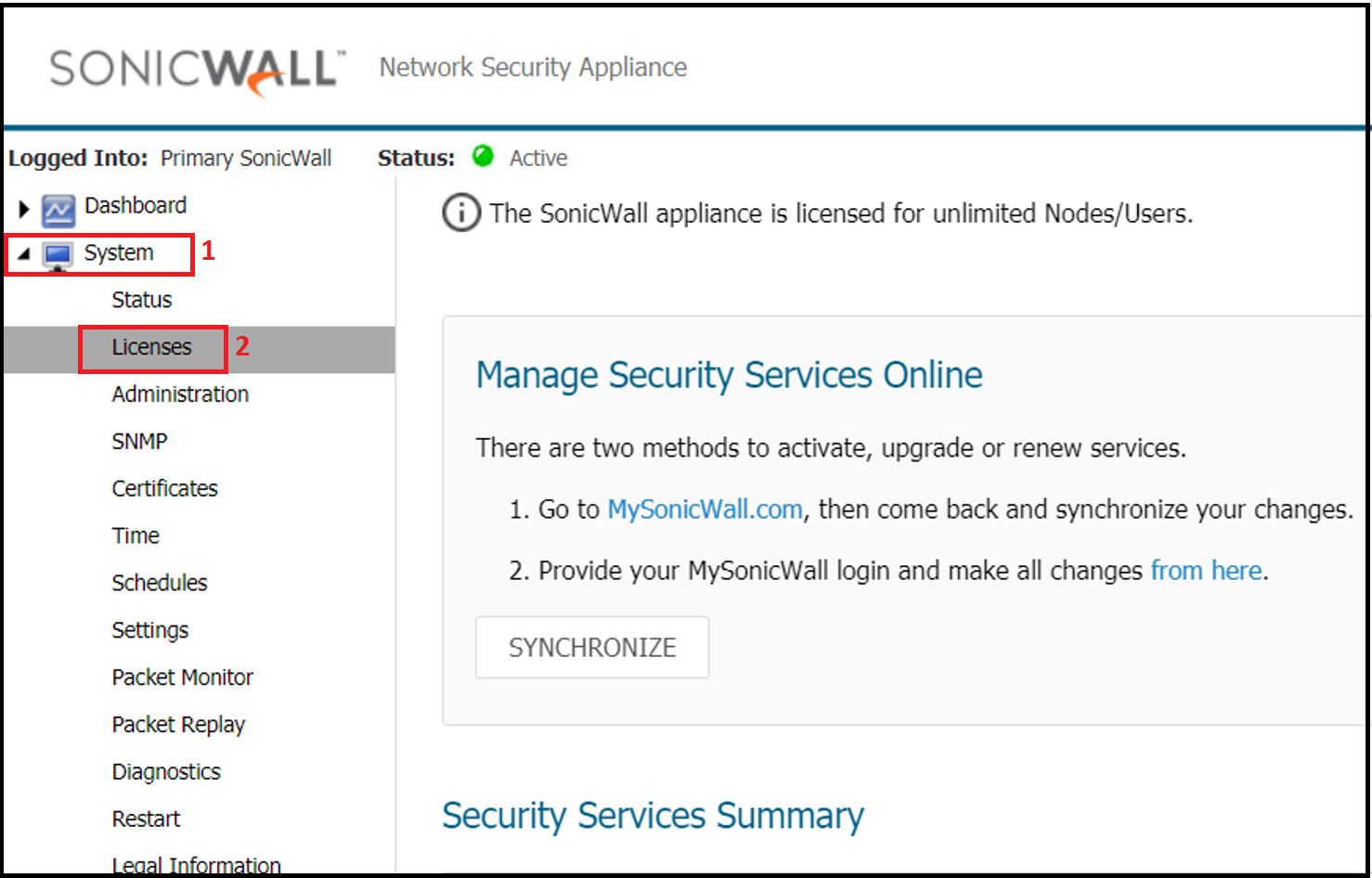
| SonicOS 5.x | System > Licenses |
| SonicOS 6.x | Manage > Updates > Licenses |
| SonicOS 7.x | Device > Settings > Licenses |
The screenshots in this guide are from SonicOS 5.x; the options are similar in newer versions.
Check the Current License Status
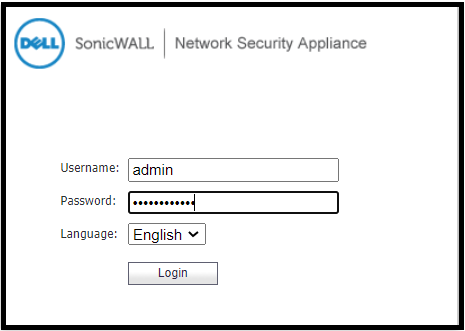
Step 1: Log In to the Firewall
Open the firewall’s management IP in a browser and log in with an administrator account.
Step 2: Open the Licenses Page
Go to the Licenses page (see the table above) to see which services are licensed, which have expired and their expiry dates.

Method 1: Activate a License Key Directly on the Firewall
This is the quickest method when you already have the activation key.
Step 3: Enter the Activation Key
On the Licenses page, find the Manual Upgrade section, enter the activation key in the “Enter upgrade key” field and click “Apply” or “Submit”.

After a few seconds, the related service should show as licensed with its new expiry date.
Method 2: Activate Through MySonicWall from the Firewall
Use this method when you want to log in to your MySonicWall account directly from the firewall’s interface.
Step 4: Open MySonicWall from the Firewall
On the Licenses page, click the link to log in to MySonicWall (shown as “Activate, Upgrade, or Renew services” in many versions).

Step 5: Log In to MySonicWall
Enter your MySonicWall email address and password, and complete the MFA prompt.

Step 6: Choose Activate or Renew
Select the service and click “Activate” for a new service or “Renew” for an existing one.

Step 7: Enter the Activation Key
Enter the activation key and click “Submit”. The firewall downloads the updated licenses automatically.

Method 3: Activate in the MySonicWall Portal and Synchronise
This method works well when you manage several firewalls, or prefer to work in the portal.
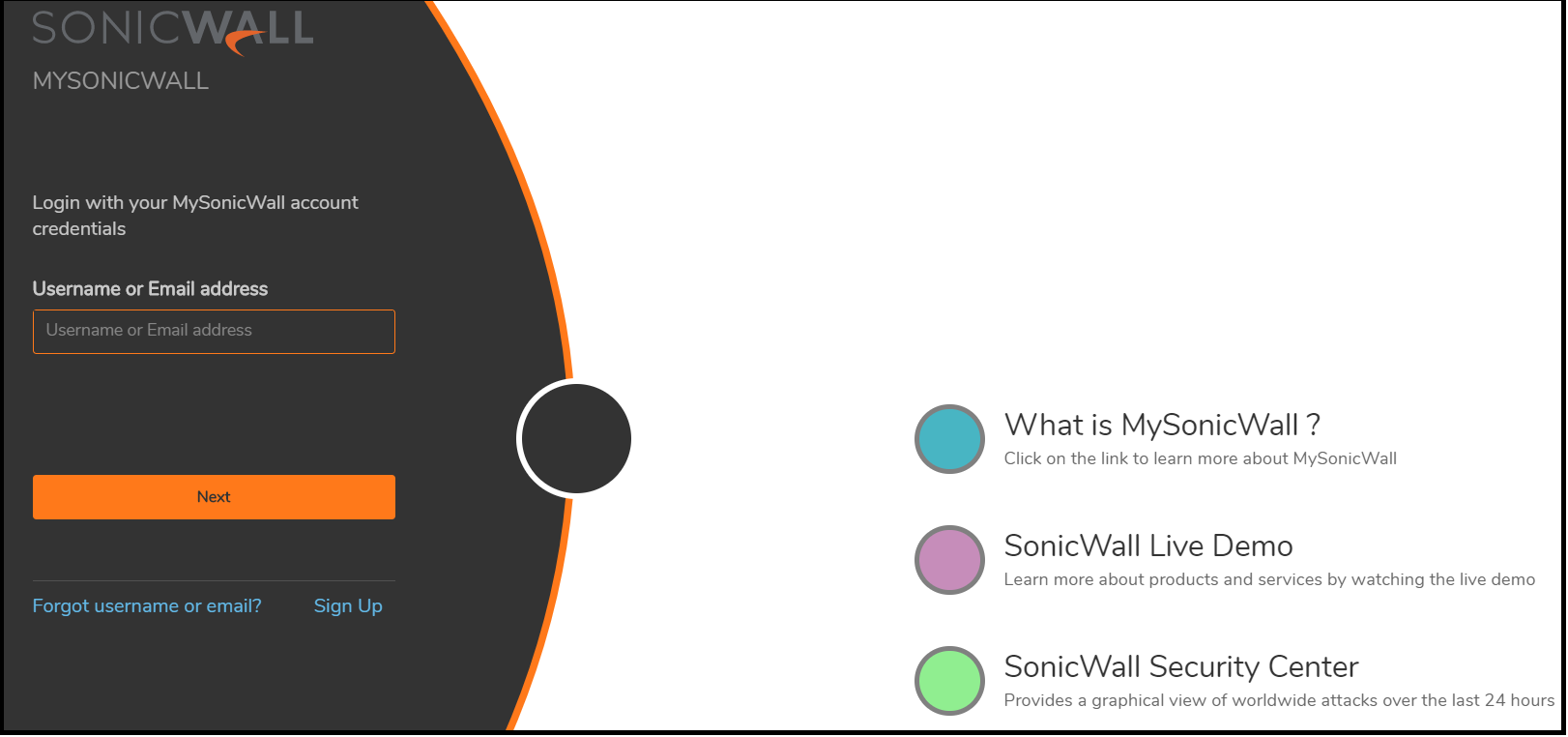
Step 8: Log In to the MySonicWall Portal
Go to mysonicwall.com and log in with your account and MFA.
Step 9: Find Your Firewall
Go to “My Products” (or “Product Management” in the newer portal), search for the firewall’s serial number and open its license options.

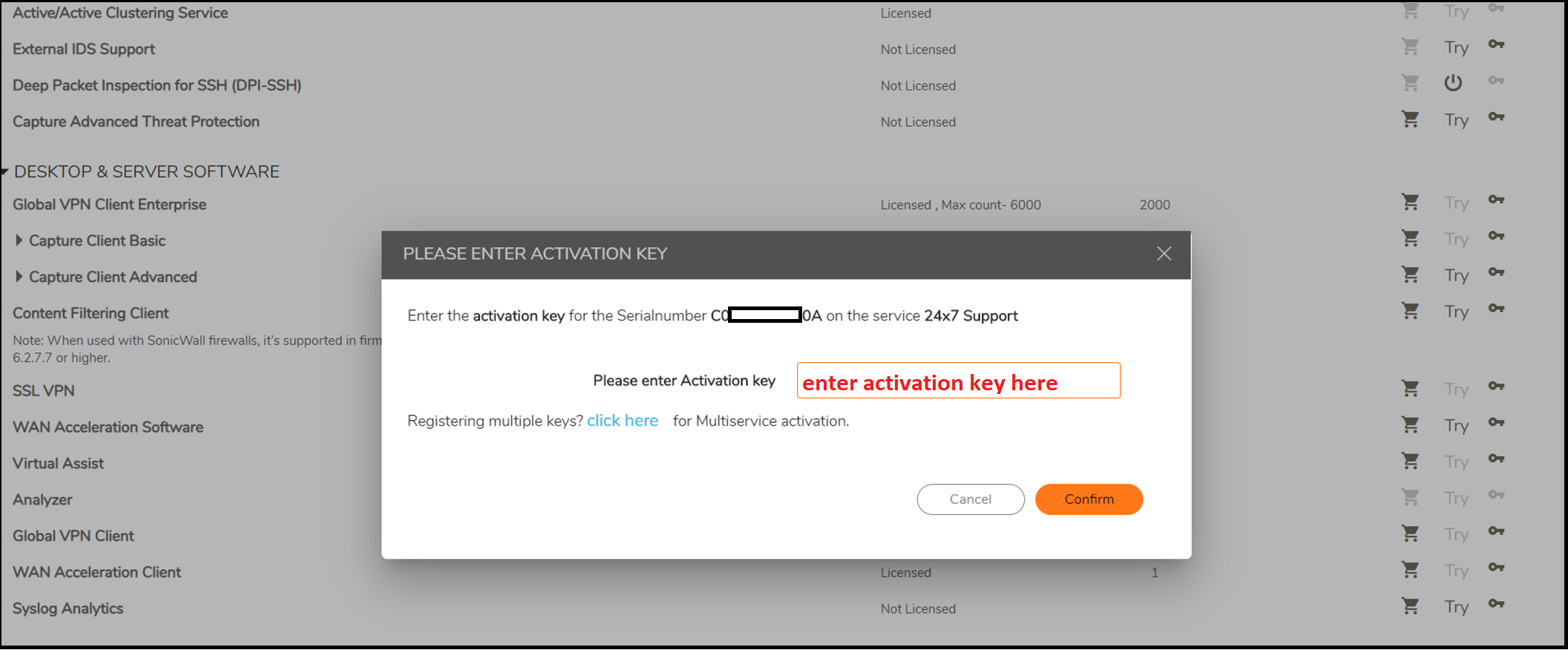
Step 10: Apply the Activation Key
Enter the activation key and confirm. The portal shows the service with its new expiry date.
Step 11: Synchronise the Firewall
Back on the firewall’s Licenses page, click “Synchronize” so the firewall downloads the updated licenses from MySonicWall.

Step 12: Confirm the New Expiry Dates
Refresh the Licenses page and check that each service shows as licensed with the correct expiry date.
Firewall Without Internet Access? Use a License Keyset
If the firewall cannot reach the internet, you can activate it offline. In MySonicWall, open the firewall’s product page and copy its license keyset (a long block of text). On the firewall, paste it into the Manual Upgrade keyset field (shown as “Paste the keyset” or “Manage Licenses offline” in some versions) and click “Submit”.
Troubleshooting
- “Synchronize” fails or does nothing – check that the firewall has working DNS, a default route and the correct date and time, and that HTTPS to SonicWall’s servers is not blocked.
- “Invalid activation key” – check for typing errors, and make sure the key is meant for this model and service. A key can only be used once.
- License shows in MySonicWall but not on the firewall – click “Synchronize” again, or use the license keyset method.
- Cannot log in to MySonicWall – check your MFA setup, or reset your password from the MySonicWall login page.
Frequently Asked Questions
What happens when SonicWall licenses expire?
The firewall keeps routing traffic and enforcing basic firewall rules, but subscription services such as Gateway Anti-Virus, Intrusion Prevention and Content Filtering stop receiving updates or stop working. Firmware updates and support may also no longer be available.
Do I need to reboot the firewall after activating a license?
No. Licenses are applied immediately without a reboot.
Can I transfer licenses to a new SonicWall firewall?
Licenses are tied to the firewall’s serial number. Transfers to a replacement device are handled through SonicWall or your reseller, for example as part of an upgrade or RMA programme.
If you want to upgrade the firmware of your firewall as well, follow SonicWall NSA Firmware Upgrade.
Disclaimer: This article is for educational purposes only and is not professional financial, medical, or legal advice. It may contain affiliate links, which earn us a small commission at no extra cost to you. See our Disclaimer and Affiliate Disclosure.
Article ID: EA00032