Scenario:
Make: Microsoft
Product: Microsoft Outlook (classic desktop app) for Microsoft 365 / Exchange
Version: Outlook 2016, 2019, 2021, 2024 and Microsoft 365
Mode: GUI (Graphical User Interface)
Description: In this article, we will discuss why Outlook shows only the emails of the past one year, and how to change the setting so that all your emails are available in Outlook.
Problem
After installing Outlook for the first time, reinstalling it, or setting up a new computer, you may notice that Outlook shows only the emails from the past one year. Older emails seem to be missing, even though they are not archived and are still available on the server, for example when you check in Outlook on the web.
Why Does This Happen?
Outlook uses Cached Exchange Mode, which keeps a local copy of your mailbox on your computer (an OST file). To save disk space, Outlook downloads only recent emails by default, usually the past one year, or even less on computers with a small disk. Older emails stay on the server, but they are not shown in Outlook. Your emails are not deleted.
Solution
To download all emails from the server to Outlook, change the offline mail setting from one year to All. Your emails still remain on the server. Outlook only downloads a local copy of them.
Step 1: Open the File Menu
Open Outlook and click “File” at the top left, as shown below.

Step 2: Open Account Settings
Click “Account Settings” and then “Account Settings…” again. Select your email account and click “Change“, as shown below.

Step 3: Change the Email History Setting
Under Offline Settings, check the “Download email for the past” (or “Mail to keep offline“) slider. If it is set to 1 year, move the slider all the way to the right to select “All“.

Step 4: Save the Changes
Click “Next” and then “Done” to save the changes.
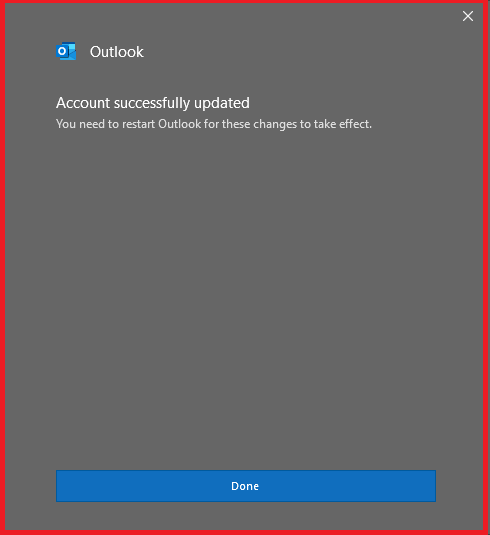
Step 5: Restart Outlook
Close Outlook and open it again. Outlook starts downloading the older emails in the background. Depending on the size of your mailbox and your internet speed, this can take from a few minutes to several hours.
Once the sync is complete, you will be able to access all your old emails (older than one year) in Outlook.
Important Note: Downloading all emails increases the size of the local mailbox (OST) file. Make sure your computer has enough free disk space, especially if your mailbox is large.
Quick Alternative: View Older Emails Without Downloading
If you only need an old email occasionally, you do not have to change the setting. Scroll to the bottom of the folder, for example the Inbox, and click “Click here to view more on Microsoft Exchange“. Outlook then shows the older emails directly from the server without saving them on your computer.
Troubleshooting
- The slider is greyed out: your IT team has fixed this setting with a group policy. Ask them to change it, or use the quick alternative above.
- Old emails are still missing after the sync: check Outlook on the web. If the emails are not there either, they may have been archived or moved by a retention policy, and changing this setting will not bring them back.
- Using the new Outlook for Windows: the new Outlook does not have this slider. It shows emails from the server, so older emails appear as you scroll down.
Other Important Topics
- Microsoft Teams Presence Not Showing in Outlook
- Black Screen Issue Over Video Call On Microsoft Teams
- Updating Contact List in Microsoft Outlook 365
- Outlook Connection To Gmail Broke After Google’s 2F Authentication Policy
Disclaimer: This article is for educational purposes only and is not professional financial, medical, or legal advice. It may contain affiliate links, which earn us a small commission at no extra cost to you. See our Disclaimer and Affiliate Disclosure.
Article ID: EA00076