Scenario:
Make: Ubiquiti
Model: Ubiquiti UniFi Devices
Description: In this article, we cover the default usernames and passwords for Ubiquiti UniFi devices in 2026. These defaults apply to UniFi access points (APs), switches, gateways (such as the USG-Pro-4, UXG-Lite, and UXG-Pro), and consoles (such as the UDM-Pro). Default credentials vary by device type, by product generation (older vs. newer models), and by whether the device is factory-fresh or you have already adopted or reset it.
Short answer: ui / ui for newer access points and switches (ubnt / ubnt on older ones), and root / ui for gateways and consoles (root / ubnt on older ones).
Username & Password
Another scenario is when we need to log in to unify access points via SSH. So when we try to SSH access point we need a username and password. Here we could have two situations
If the controller has not yet adopted your UniFi access points, security gateways, or switches, you may need to access them via SSH. Before adoption, you log in with the default username and password for UniFi network devices.
Access points and switches (UniFi devices)
Older Devices or firmware:
username = ubnt
password = ubnt
Newer Devices or firmware:
username = ui
password = ui
Gateways (such as UXG-Lite, UXG-Pro, USG-Pro-4) and consoles (such as UDM-Pro, Cloud Key)
Older Devices or firmware:
username = root
password = ubnt
Newer Devices or firmware:
username = root
password = ui
Controller Setup
If you have new Ubiquiti wireless access points to set up, you will first need to configure the UniFi Controller. You can deploy the controller locally or remotely, for example on a laptop, a desktop, or in a data center, so that you can manage all access points centrally through a single controller interface.
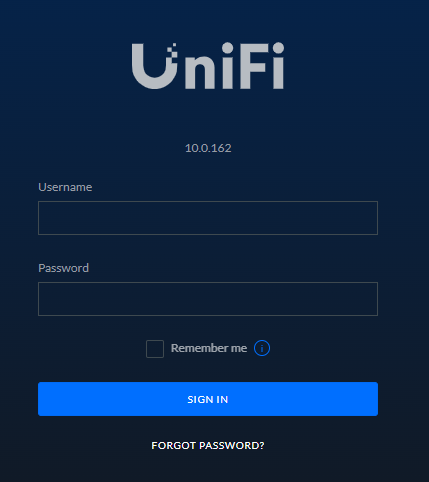
Once you have fully set up the controller, you will see the login page shown in the screenshot below.
Password setup
When setting up the controller, you need to install the UniFi Controller software. After the installation completes, the setup will prompt you to create a password as part of the initial configuration.
Note: once the software is installed it will ask to set up a new password.
Set a username and password, and make sure to store them securely—either in a trusted online password manager or in another safe location that you can access easily. Since you will need to log in frequently, keeping your credentials safe and accessible will save you time and effort later.
If the controller has already adopted a UniFi access point and you want to access it via SSH, note that the controller generates and stores a unique password for the device during adoption. For detailed instructions, please refer to the guide on SSH access to UniFi access points after adoption.
If you are unable to retrieve the password or if the default credentials no longer work, you may need to perform a factory reset on the UniFi access point. For guidance, please refer to the article on how to Factory Reset Ubiquiti Unifi Access Point.
Disclaimer: This article is for educational purposes only and is not professional financial, medical, or legal advice. It may contain affiliate links, which earn us a small commission at no extra cost to you. See our Disclaimer and Affiliate Disclosure.
Article ID: EA00036