Scenario:
Make: Ubiquiti
Model: UniFi Security Gateway Pro-4 [USG-PRO-4]
Mode: Physical reset button, CLI [SSH] and UniFi Network application
Description: In this article, we will discuss three methods to factory reset a Ubiquiti UniFi Security Gateway Pro-4 (USG Pro-4): using the reset button, using an SSH command, and using the UniFi Network controller. We will also cover what to do before and after the reset.
Before You Reset the USG Pro-4
A factory reset erases all settings on the gateway and returns it to its default configuration. Before you start:
- Expect an internet outage. The USG is the router for your network, so all devices behind it lose internet access until it is set up again.
- Check your controller backup. When the USG is managed by a UniFi Network controller, its configuration is stored in the controller, not only on the gateway. Make sure you have a recent controller backup (Settings > System > Backups). If you use a custom config.gateway.json file on the controller, keep a copy as well.
- Decide whether to keep it in the controller. If you want to start completely fresh, forget the device in the controller (Method 3). If you only want to re-adopt it with the same settings, you can adopt it again after the reset and the controller will push the configuration back.
- Note your ISP settings, such as a static IP, PPPoE username and password, or VLAN ID, as you may need them during the new setup.
| Method | When to Use It |
| Reset button | You have physical access, or you cannot log in at all |
| SSH command | You can reach the USG over the network but not physically |
| UniFi controller (Forget) | The USG is online and adopted in your UniFi Network application |
Method 1: Factory Reset Using the Reset Button
This is the simplest and most reliable method, and it works even if you have forgotten the password. You need a straightened paper clip or a SIM tray pin.
Step 1: Locate the Reset Button
Find the small recessed button labelled RESET on the front panel of the USG Pro-4, near the SFP2 port.

Step 2: Keep the Gateway Powered On
The USG must be switched on and fully booted. Do not disconnect the power cable at any point during the reset.
Step 3: Press and Hold the Button
Gently press the reset button with the pin and hold it for about 10 seconds. Do not use force.
Step 4: Release and Wait
Release the button when the LEDs change or go off. The USG restores its default settings and reboots. This usually takes a few minutes; wait until the LEDs are stable again.
Important Note: Do not unplug the USG while it is resetting and rebooting. Interrupting it can corrupt the firmware.
Method 2: Factory Reset Using SSH
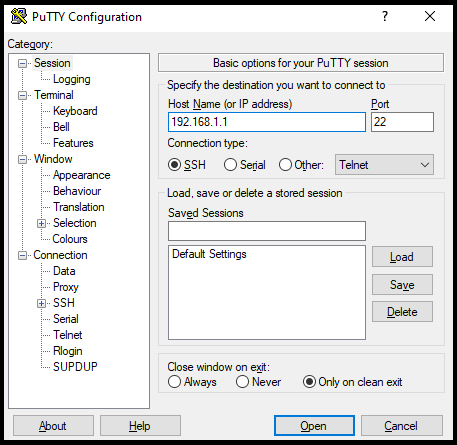
Step 1: Connect to the USG over SSH
Use an SSH client such as PuTTY to connect to the USG’s IP address, and log in with the device SSH credentials. If the USG is adopted, these are set in the controller under Settings > System > Advanced (Device Authentication). If you get a key exchange error in PuTTY, see “Couldn’t agree a key exchange algorithm” SSH Error with Putty.
Step 2: Run the Reset Command
At the prompt, run:
sudo syswrapper.sh restore-defaultExample session:
ubnt@192.168.1.1's password:
Welcome to EdgeOS on UniFi Security Gateway!

********************** WARNING! ***********************
* Configuration changes made here are not persistent. *
* They will be overwritten by the controller on next  *
* provision. Configuration must be done in controller.*
*******************************************************
ubnt@ubnt:~$ sudo syswrapper.sh restore-default
The SSH session disconnects and the USG reboots with factory default settings.
Method 3: Reset Using the UniFi Network Controller
If the USG is online and adopted, you can reset it from the controller without touching the device:
- Open the UniFi Network application and go to “Devices”.
- Click the USG Pro-4 to open its settings panel.
- Under “Settings” or “Manage”, choose “Forget” (shown as “Forget this device” in some versions) and confirm.
The controller removes the USG from its device list and sends it a factory reset. The USG then reboots with default settings and appears as Pending Adoption if it can still reach the controller.
After the Reset: Default Settings
| Setting | Default Value |
| LAN IP address | 192.168.1.1 |
| LAN port | LAN 1 |
| DHCP server on LAN | Enabled |
| Username / password | ubnt / ubnt |
To access the USG after the reset:
- Connect your computer to the LAN 1 port. Your computer should receive an IP address automatically in the 192.168.1.x range; if not, set a static IP such as 192.168.1.10 with subnet mask 255.255.255.0.
- Open https://192.168.1.1 in a browser, or SSH to 192.168.1.1, and log in with the default credentials. See Ubiquiti UniFi Default Username and Password for details.
- Set up the USG again using the GUI method or the CLI method, then adopt it in your UniFi Network application.
Troubleshooting
- The reset button does not seem to work – make sure the USG has fully booted before pressing the button, and hold it for the full 10 seconds.
- Cannot reach 192.168.1.1 – check that you are connected to the LAN 1 port, not a WAN port, and that your computer has an address in the 192.168.1.x range.
- “Permission denied” when running the SSH command – add sudo in front of the command, as shown above.
- The USG shows “Managed by Other” in the controller – it is still linked to a previous controller. Reset it again, or forget it from the old controller first.
- Old settings return after adopting – the controller pushed back the saved configuration. Forget the device and remove any custom config.gateway.json if you want a clean setup.
Frequently Asked Questions
How long does a USG Pro-4 factory reset take?
The reset itself takes about 10 seconds, and the reboot a few more minutes. Allow around five minutes before trying to connect.
Does a factory reset update or remove the firmware?
No. A factory reset only erases the configuration. The firmware version stays the same. To update the controller, see Ubiquiti UniFi Controller Firmware Upgrade.
Is the USG Pro-4 still supported?
The USG Pro-4 has reached end of life, and Ubiquiti now recommends newer gateways. If you are replacing it, see Ubiquiti UniFi UXG Pro Initial Setup.
You may also find these useful: Factory Reset Ubiquiti UniFi Access Point and How To Reboot or Reload Ubiquiti UniFi Access Point. On this website, there are many more articles on Ubiquiti and UniFi products.
Source: Knowledge Base, Lab, Ubiquiti Help Center
Disclaimer: This article is for educational purposes only and is not professional financial, medical, or legal advice. It may contain affiliate links, which earn us a small commission at no extra cost to you. See our Disclaimer and Affiliate Disclosure.
Article ID: EA00067