Ubiquiti UniFi offers a wide range of network devices, including access points, switches, and gateways, and its Wi-Fi 6 and newer access points have become popular with businesses and home users alike. You can find the products and their datasheets on the UniFi store.
Like any hardware, a UniFi device can sometimes become faulty while it is still under warranty. In that case, you can raise an RMA (Return Merchandise Authorization) request with Ubiquiti to get it replaced. In this article, we will discuss the step-by-step method to raise an RMA or replacement request for a faulty Ubiquiti UniFi device that is under warranty.
Note: The warranty period depends on the product and the country where you bought it. At the time of writing, UniFi products purchased online in India came with a 2-year warranty. Check the Ubiquiti warranty page for the current terms for your product and region.
Before You Raise an RMA
Ubiquiti only provides RMA service for products purchased through official channels, such as the Ubiquiti store or an authorized distributor or reseller. Keep the following details ready, as you will need them in the RMA form:
- The MAC address or serial number of the faulty device (printed on the label of the device and its box)
- Proof of purchase, such as the invoice, showing the purchase date and seller
- A clear description of the problem
- The troubleshooting steps you have already tried
- Your name, contact details, and shipping address
Before raising the RMA, try basic troubleshooting, such as using a different cable, PoE port, or power adapter, and factory resetting the device. If you cannot log in to the device after a reset, refer to our article on the UniFi default username and password. Listing these steps in your request helps Ubiquiti approve it faster.
Tip: The RMA portal is only for replacing faulty devices. If you want a refund for a product bought from the Ubiquiti store, contact the store’s support team instead.
Steps to Raise an RMA or Replacement Request
Step1: Check the Warranty Status
Check the purchase date on your invoice to confirm that the device is still within its warranty period.
Step2: Log In to the RMA Portal
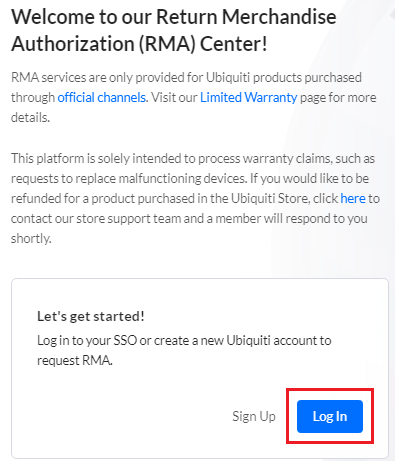
Go to the Ubiquiti RMA portal at https://rma.ui.com and log in with your Ubiquiti account (the same account you use for the Ubiquiti store, UniFi Site Manager, or the UI Community). If you do not have an account, click Sign Up to create one.
Step3: Submit the RMA Request
Enter the MAC address of the faulty device. Once the portal finds the device, describe the fault, list the troubleshooting steps you tried, upload your invoice as proof of purchase, and add photos if needed. Then submit the request.

Step4: Check the RMA Status
After the request is submitted, wait for it to be approved. You can track the approval status in the RMA dashboard, as shown below.

Step5: Ship the Faulty Device
Once the RMA is approved, you will receive an email with an RMA number and shipping instructions. In our case in India, the email included a reference number to schedule a pickup of the faulty device. Follow the instructions in the email and send the device to the Ubiquiti partner or address mentioned. Write the RMA number on the package, and ship the device soon after approval, because Ubiquiti can reject returns that arrive too late after the RMA is issued.
If you do not receive an email after approval, reply to the RMA email thread or contact Ubiquiti support through the RMA portal and ask for an update. Following up yourself often helps move the request along.
Step6: Receive the Replacement
Once Ubiquiti receives the faulty device, they will test it and ship a replacement unit. This can take a week or more, depending on your location.
Tip: If downtime is a concern, Ubiquiti’s optional UI Care extended warranty ships the replacement before your original device is received and inspected.
Other Articles on Ubiquiti UniFi
- How to Switch Between Legacy and New User Interface of Ubiquiti
- Optimize Ubiquiti UniFi Wireless Performance
- Adding a New Site on Ubiquiti UniFi Controller
- Custom Firmware Upgrade of Ubiquiti UniFi Access Point – CLI
- Site-to-Site IPSec VPN Configuration on Ubiquiti UniFi USG
Disclaimer: This article is for educational purposes only and is not professional financial, medical, or legal advice. It may contain affiliate links, which earn us a small commission at no extra cost to you. See our Disclaimer and Affiliate Disclosure.
Article ID: EA00151